
Build · Chrome extensions
Chrome extension development: your product, inside the pages your users already work in
A Chrome extension puts your product next to the work instead of in another tab. We design and build Manifest V3 extensions for Chrome and the browsers built on it, plus Firefox when you need it: side panels, toolbar popups and content scripts that read or add to the page, the backend and accounts behind them, and the Chrome Web Store listing and review. We built Copilotly this way: a Chrome extension and web app that brings 131 specialist copilots onto whatever page the user already has open.
- Manifest V3 from the first line, with the permissions kept as narrow as the job allows
- The extension, the web app and the API it talks to, built by one team
- Store listing, privacy disclosures and review handled with you, then updates as Chrome changes
Updated
What a Chrome extension is made of
Most people picture an extension as the small icon next to the address bar. That icon is one of five or six parts, and choosing the right ones is the first design decision. Pick a part to see what it does, when we use it and what it costs you in permissions or complexity.
A small window that opens when the user clicks your icon. It closes as soon as focus leaves it, so it suits quick actions: save this page, check a status, switch a setting.
A panel that docks beside the page and stays open while the user scrolls, switches tabs or reads. Chrome's side panel API lets an extension show it on every site or only on the sites where it is useful.
Code that runs inside the web page itself. It can read what is on the page, add buttons or highlights, and fill or watch form fields.
The extension's background brain. It listens for events, such as a tab changing, a message from the page or an alarm firing, and talks to your API. In Manifest V3 Chrome stops it when it is idle and starts it again on the next event.
A settings page the user opens from the extension menu: account, preferences, which sites the extension should work on.
When a Chrome extension is the right product
An extension is the right answer when the value depends on where the user already is. If people would have to copy something out of one website and paste it into yours, the extension removes that step. If they would happily open your app in a tab, a web app is simpler, cheaper to change and easier to support. These are the cases we see most often, with the thing to get right in each.
- 01
Assistant beside the page
A specialist reads the contract, report or listing the user has open and answers questions about it.
Get this right: What the extension is allowed to read, and what leaves the browser. Say it plainly in the panel, not only in the privacy policy.
- 02
Your product inside someone else's tool
Your CRM, ticketing or pricing data appears inside the web apps your customers use all day.
Get this right: Resilience. The host site will change its markup without warning, so the extension needs selectors that degrade gracefully and an alert when they stop matching.
- 03
Capture and clip
Save a page, a selection, a product or a lead to your app in one click, with the details filled in.
Get this right: Speed and confirmation. The save has to feel instant, work offline for a moment, and show clearly where the item went.
- 04
Internal team tool
A tool for your own staff that adds steps to the admin panels, portals and dashboards they use every day.
Get this right: Distribution. Internal tools are usually unlisted or published privately to your organisation, and installed through browser policy instead of the public store.
- 05
Companion to a SaaS product
The extension is the fastest way into an existing web app: sign-in shared, data synced, the heavy screens left in the app.
Get this right: One account and one source of truth. The extension should never become a second product with its own settings and its own bugs.
When we would say no: if the product only needs to exist in its own tab, if it needs to run when the browser is closed, or if it needs to change how other websites behave in ways their owners would object to. Store policy and good sense rule out the last one, and the first two are better served by a web or phone app.
Permissions decide whether people install it
Before anyone installs your extension, Chrome shows them what it will be able to do. Every permission you ask for adds a line to that warning, and broad ones such as reading and changing data on every website make people hesitate, slow down store review and invite questions from the security teams of business customers. Toggle the features below to see how the warning grows, then read how we keep it short.
Start with activeTab
activeTab grants access to the current page only when the user clicks the extension or uses its shortcut, and it adds no install warning. For most assistants and clippers it replaces access to every website entirely.
Ask later, not at install
Features that need more, such as working automatically on one site, ask for an optional permission at the moment the user turns the feature on, with an explanation in your own words.
Name the sites
When the extension only works on a few known sites, we list those hosts instead of all URLs. The warning then names those sites, which business customers can approve.
One purpose, written down
The Chrome Web Store expects an extension to have a single, clear purpose and to justify each permission against it. We write that justification before we write code, because it shapes the build.
How the pieces talk to each other
An extension is a small distributed system. The page, the panel, the background service worker and your server each run in a different place, with different rules about what they can see. Most extension bugs come from the gaps between them, so we design the messages first.
Content script
inside the web page
Reads and marks up the page. Sends only what the feature needs.
Side panel / popup
your interface
React and TypeScript, the same components as your web app where it makes sense.
Service worker
in the background
Routes messages, holds the session token, calls the API. Wakes on events, sleeps when idle.
Your backend
on the server
Accounts, subscriptions, the real work, logs. Node.js and MongoDB on our builds.
- Typed messages
- Every message between the page, the panel and the worker has a name and a defined shape in TypeScript, so a change on one side fails the build instead of failing silently in a user's browser.
- State lives in storage
- Because Chrome stops the service worker when it is idle, nothing important is kept in memory. Sessions, queues and settings go into extension storage and survive a restart.
- Logic stays on the server
- Manifest V3 does not allow an extension to download and run new code, so the logic that changes often, such as rules, prompts or pricing, lives behind your API. You can change behaviour without waiting for a store review.
- Secrets never ship
- Anything inside the extension package can be read by anyone who installs it. API keys stay on the server; the extension holds only a short-lived token for the signed-in user.
- Page content is untrusted
- Text a content script reads from a web page can contain anything, including markup written to trick your extension. We treat it as data, never insert it into the panel as raw HTML, and validate it again on the server.
- Logs that help without spying
- We log which feature ran, how long it took and what failed, so problems can be fixed, but not the contents of the pages people read. What is collected is written down, and it matches the privacy disclosures in the store listing.
Extension, web app or integration? The decisions before the build
An extension is one of several ways to put your product in front of people. Before we recommend one, we compare it honestly with the alternatives on the things that decide success: whether it can see the user's work, how hard it is to install, how fast you can change it and who has to approve it.
| Criterion | Chrome extension | Web app | Integration via the other tool's API |
|---|---|---|---|
| Works on pages you do not ownExtensions can read and add to other sites; an API integration only reaches what that tool chooses to expose. | Strong | Poor | Good |
| Easy to installA web app is a link. An extension is one click plus a permission prompt. Integrations often need an admin to approve them. | Good | Strong | Fair |
| Fast to changeWeb apps change on deploy. Extension updates pass store review, so the logic that changes often belongs on the server. | Good | Strong | Good |
| Works on phonesChrome on Android and iPhone does not run extensions. If your users live on phones, an extension is the wrong answer. | Poor | Strong | Good |
| Independent of another company's roadmapExtensions depend on Chrome and on the sites they touch; integrations depend on the other tool's API terms. | Fair | Strong | Fair |
- Which browsers
- Chrome alone covers most desktop users, and Edge and Brave run the same build. Firefox adds testing and some code paths of its own. We decide this in week one because it changes the APIs we can use.
- Public, unlisted or private
- A public listing is found in store search. Unlisted works for early customers and pilots. Private, policy-installed extensions are for your own staff. You can move from one to another later.
- How people pay
- The Chrome Web Store no longer handles payments for extensions, so subscriptions run through your own web app and payment provider, and the extension checks the account. Copilotly works this way: the web app handles accounts and subscriptions.
- One sign-in or two
- If you already have a web app, the extension should use the same account and session rather than its own login. We design the sign-in hand-off between the two so users sign in once.
- What stays on the server
- Rules, prompts, pricing logic and anything you will want to change next week live behind your API, because extension code can only change through a store update.
What you get
Every project ends with the same set of things in your hands, whether the extension is a two-week internal tool or the front door to a subscription product. Read it as a manifest: each line is something you receive and can check.
"manifest_version": 3A Manifest V3 extension, the only version Chrome accepts for new items.
"name / description": "Your product"Store listing copy, screenshots, promo tile and the privacy-practices answers, drafted with you.
"permissions": [ "activeTab", "storage" ]The smallest permission set that does the job, with a written justification for each.
"side_panel / action": React + TypeScriptThe interface: side panel, popup or both, designed for the narrow width it really has.
"content_scripts": only where neededPage integration that fails quietly when a site changes, with reporting so you find out.
"background": service_workerMessaging, sign-in and API calls built for a worker that sleeps.
"backend": API + accountsThe server side if you need one: sign-in, subscriptions, the work itself, and an admin console.
"tests": Chrome · Edge · FirefoxHand-run passes in each target browser, plus automated checks on the messaging and the API.
"release": store review + runbookSubmission, answers to reviewer questions, and a written release and rollback routine.
How we build an extension
The order matters more than for most products, because two gates sit outside your control: the permission warning your users will read and the store review. We design for both from the first week.
- Week 1
Scope the single purpose
We write down what the extension does in one sentence, which pages it works on, what it reads, what leaves the browser and why. That paragraph becomes the store justification and the privacy text, and it settles which parts of the anatomy we need.
Gate: You sign off the purpose and the permission list.
- Weeks 1–2
Design for the real width
Side panels and popups are narrow and the page beside them is busy. We design the screens at their real size, in light and dark, with the empty, loading, signed-out and error states drawn, and a clickable prototype you can try.
Gate: You approve the screens before code.
- From week 2
Build the spine first
Sign-in, typed messaging between the parts, storage and the first API call come before features. A test build you can load into your own Chrome arrives early and then every few days.
Gate: You install the unpacked build and use it on your own pages.
- Through the build
Harden on real sites
Content scripts are tested on the actual sites they target, including logged-in pages, slow connections and the layouts those sites show on smaller screens. We test Chrome first, then Edge and Firefox if they are in scope.
Gate: A release checklist with every item ticked.
- Launch
Store review and listing
We prepare the listing, the screenshots, the privacy-practices answers and the permission justifications, submit, and answer reviewers. Narrow permissions and a clear purpose are what keep review short; broad ones are what slow it down.
Gate: Published, unlisted or private: your choice.
- After launch
Updates as Chrome changes
Chrome ships a new version every four weeks and the sites your content scripts touch change on their own schedule. We watch both and release fixes through the store, or hand over a runbook so your team can.
Gate: Maintenance plan or a clean handover.
Built by us
Proof: Copilotly, a Chrome extension we built
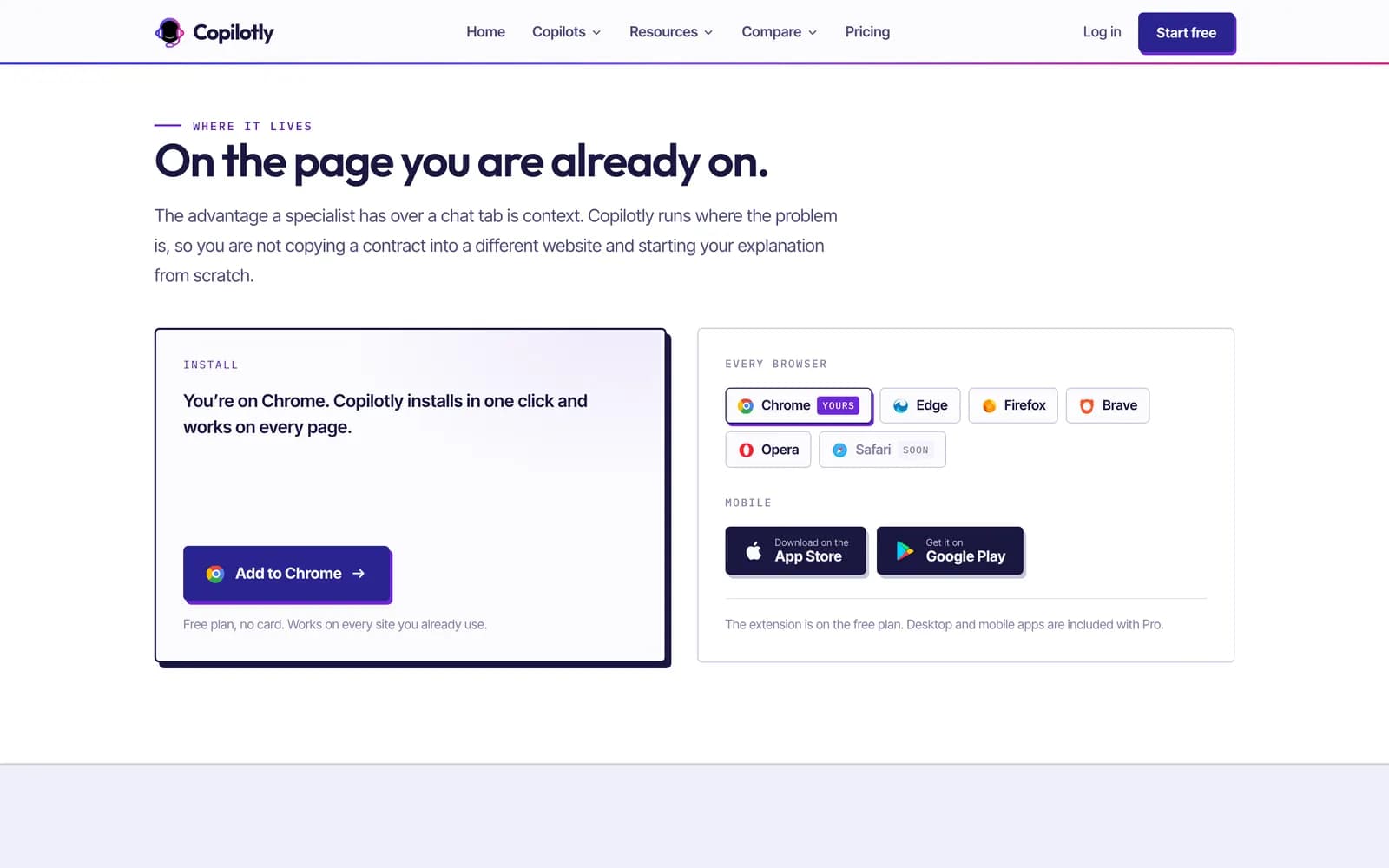
Copilotly puts specialist copilots inside the browser. Instead of one general chatbot in another tab, the user picks a copilot set up for one field, such as a contract reader, a lab-results explainer or a tax helper, and uses it on the page in front of them.
Where your extension is published
One codebase can usually reach several browsers, but each store has its own listing, review and rules. We plan which ones you need at the start, because it changes what we test and which browser APIs we use.
Chrome Web Store
The main store for Chrome; Chromium browsers such as Brave install from it directly. Listing, privacy-practices disclosures, permission justifications and review. Items can be public, unlisted (only people with the link) or private to a Google Workspace organisation.
Microsoft Edge Add-ons
Edge runs Chrome extensions, so the code is usually the same. Edge has its own store, listing and review, which matters if your customers are on managed Windows machines.
Firefox Add-ons
Firefox uses the same WebExtensions model with real differences in background scripts and some APIs. We keep the shared code shared and isolate what differs, rather than shipping a second product.
For internal tools, the extension often never appears in public. Admins can force-install it across the company through Chrome or Edge policy, and it updates silently. We set up the listing and the policy notes so your IT team can roll it out.
After launch: Chrome moves every four weeks
An extension lives inside two things that change without asking: the browser and the websites it works on. Chrome ships a new version every four weeks, deprecates APIs on a published schedule, and tightens store policy from time to time. The sites your content scripts read redesign whenever they like.
Watch the release notes
We read Chrome's upcoming changes and test against the beta channel before a release reaches your users.
Watch the pages
Content scripts report when a selector stops matching, so you hear about a host-site redesign from a log, not from a support ticket.
Ship fixes through review
Every update goes through store review again. Small, focused releases with unchanged permissions pass fastest; adding a permission can disable the extension until users accept it.
Migrations
If you have an older Manifest V2 extension, Chrome no longer runs it. We move it to Manifest V3, which mostly means rebuilding the background page as a service worker and replacing blocking network rules.
Questions about Chrome extension development
How long does it take to build a Chrome extension?
A focused extension with one job, such as a clipper or an internal helper, is a matter of weeks. One with a side-panel app, accounts, a backend and subscriptions is a SaaS product build measured in months. Store review comes on top, and it is shortest when the permissions are narrow. You get a dated plan after the first scoping week.
Will my extension work in Edge, Brave and Firefox as well as Chrome?
Edge, Brave and Opera are built on the same engine as Chrome and run the same extension, though Edge has its own store listing. Firefox uses the same extension model with differences in background scripts and some APIs, so it needs its own testing and sometimes small code paths of its own. We decide the target browsers at the start.
What is Manifest V3 and does it limit what an extension can do?
Manifest V3 is the current format Chrome requires for extensions. Its main changes are that the background code runs as a service worker that stops when idle, that extensions cannot download and run new code, and that network blocking uses declared rules. Most products work well within it once the design accounts for these from the start.
Can an extension read the web pages my users visit?
It can, with the right permission, and that is exactly why we keep it narrow. Most features only need access to the current tab after the user clicks the extension (the principle of least privilege), which Chrome grants without an install warning. Reading every site all the time is rarely necessary and makes people and stores wary.
Can we publish an extension only for our own staff?
Yes. An extension can be unlisted, so only people with the link find it, or published privately to your Google Workspace organisation. Administrators can also force-install it on managed Chrome and Edge browsers through policy, so staff get it without doing anything.
Do you build the backend and web app behind the extension too?
Yes, and on most projects that is half the work: sign-in, subscriptions, the processing the extension asks for, an admin console and logs. Copilotly is built that way, with a web app for accounts, subscriptions and settings beside the extension.
Can you take over or update an existing extension?
Yes. We start by reading the code, the manifest and the store listing, as in any app takeover, then list what needs fixing before Chrome or the store forces the issue. Moving an older Manifest V2 extension to Manifest V3 is a common first job.
Tell us what your users do in the browser
Describe the pages they work on and what they copy, check or repeat there. We will tell you whether an extension is the right product, which parts it needs and what the permission warning would say, before anything is built.